
AI design tools such as Gemini, ChatGPT, and Claude can now generate beautifully animated SVGs. But the moment you want to edit or adjust those animations, you quickly discover a painful truth:
Most animation editors don’t support SMIL animation, which is the format AI tools commonly output.
If you try to upload these SVGs into popular animation platforms, they usually:
- Strip out the animation,
- Convert it into static shapes, or
- Force you into Lottie or JavaScript-based animation formats.
This article explains why that happens, and more importantly, which tools actually let you edit SMIL-based animated SVGs.
What Makes AI-Generated Animated SVGs Hard to Edit?
When you prompt an AI model to “animate an SVG”, it often uses SMIL animation because:
- SMIL is the simplest to generate programmatically.
- It doesn’t require JavaScript.
- It works inside a single standalone
.svgfile. - It’s predictable for machines to output.
The problem:
Most web animation tools standardize around:
- Lottie (JSON-based)
- JavaScript animation frameworks (GSAP, anime.js, etc.)
That means AI-generated SVG animations, especially ones with <animate>, <animateTransform>, or <animateMotion>, often can’t be edited directly.
Lottie vs. SMIL: Why the Gap Exists
Lottie
- Popular in UI design, mobile apps, and no-code platforms.
- Every major design tool (Figma, After Effects exporters, Haiku, Rive, etc.) is built around Lottie.
- Editing workflows are stable and well-supported.
SMIL
- Web standard animation format.
- Supported in all major browsers.
- Lightweight and perfect for AI generation.
- But not supported in most animation software.
As a result:
Tools built for designers favor Lottie. Tools built for developers expect JavaScript.
SMIL ends up in the middle, fully functional, but rarely editable.
Why You May Want to Keep SMIL Instead of Converting
SMIL still has practical advantages:
- Pure SVG (no external JSON or JS files)
- Lightweight and web-friendly
- AI tools can generate or adjust it easily
- Easy to embed in WordPress, React, Vue
If your goal is inline animations on websites, icons, small illustrations, SMIL is still an excellent choice.
But you need a tool that can actually work with it.
Which Tools Can Edit SMIL-Based Animated SVGs?
Tools that do not support SMIL editing
These tools will remove the animation or convert it into static shapes:
- Figma
- LottieFiles
- DotLottie tools
- Rive
- SVGator (supports scripted animation, not raw SMIL editing)
- Most live SVG previewers & SVG optimizers
These tools assume you want Lottie or JS animation.
Tools that support editing SMIL animations
Only a few editors handle SMIL correctly. Among them, Xyris stands out as one of the most complete SMIL-compatible editor.
1. Xyris (SMIL-Capable SVG Animator)
- Imports SMIL SVGs without breaking them
- Lets you adjust timings, paths, transforms, and many properties.
- Visual timeline and keyframe editing
- Exports pure SMIL SVG again
- No forced conversion to Lottie or JS
If you need an editor that works with AI-generated SVG animations as they are, this is currently one of the most reliable choices.
2. Raw Code Editors (for manual work)
Not visual tools, but they preserve SMIL:
- VS Code
- Sublime Text
- CodeSandbox
- StackBlitz
Good for small tweaks but not ideal for complex timeline editing.
How to Edit AI-Generated SMIL SVGs (Step-by-Step)
Step 1: Open the SVG and Identify the Animation Elements
Before editing visually, it helps to understand how the animation is structured.
Open the .svg file in any text editor and check for elements such as:
<animate ... />
<animateTransform ... />
<animateMotion ... />
These tags represent the SMIL animations that AI tools commonly generate.
You don’t need to edit them manually, this step simply tells you what you’re working with.
Step 2: Load the SVG into a Keyframe-Based Visual Editor
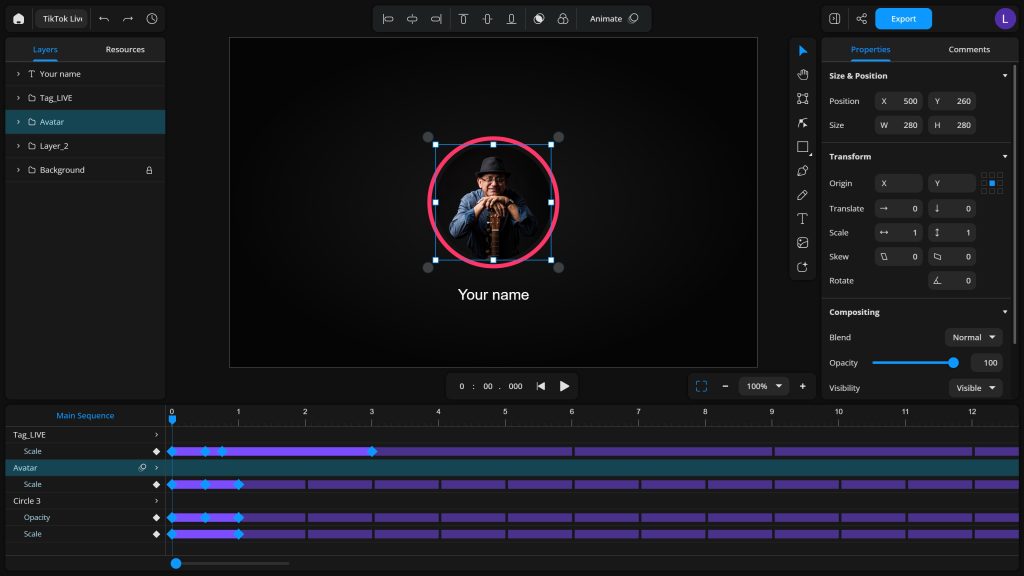
Use a visual editor that is designed to interpret SMIL animations directly (for example, Xyris).
A SMIL-aware editor will:
- Read your existing
<animate>elements - Convert them into editable keyframes on a timeline
- Let you edit motion paths, transforms, and timings visually
- Preserve the underlying animation logic
This avoids the need to rewrite XML by hand.
Step 3: Edit Timings, Keyframes, and Motion Paths Visually

Once loaded, you can modify the animation using the editor’s timeline and controls.
Typical things you may adjust:
- Duration (e.g., change
dur="1.2s"via a timeline slider) - Loops (
repeatCount, controlled in UI panels) - Keyframe distribution (editor manages what corresponds to
keyTimes) - Path or transform values (graph editors, handles, or numeric fields)
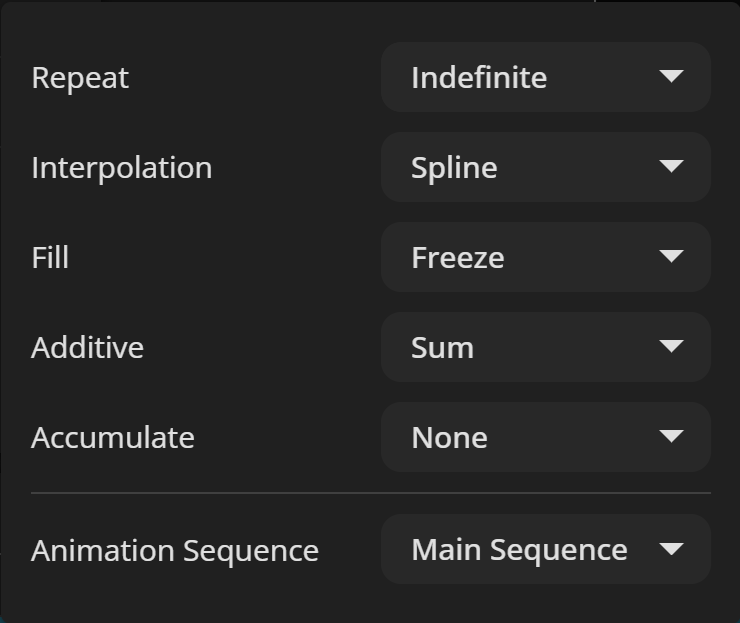
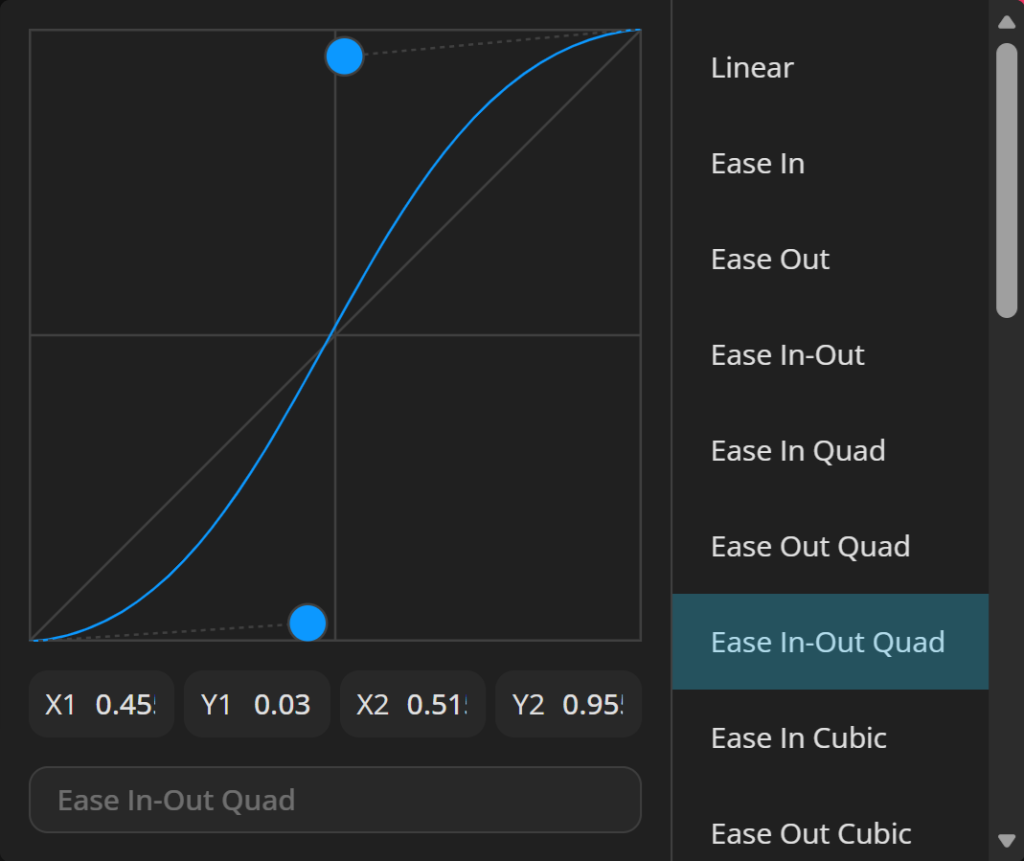
Instead of editing attributes like values="0;10;0" manually, the visual editor updates them automatically when you move keyframes or adjust motion paths.
Step 4: Export as a Clean SMIL SVG
After editing, export the animation back to SVG format.
A SMIL-capable editor will output:
- A single
.svgfile - Using the same animation system you started with
- Without adding:
- JavaScript
- External files
- Lottie conversion
- Polyfills
This keeps your animation lightweight, portable, and easy to embed anywhere.
Should You Convert AI-Generated SVGs to Lottie?
You could, but there are drawbacks:
- SMIL to Lottie conversion is imperfect
- Motion paths and timing may break
- Filters, masks, and complex transforms often fail
- You lose the simplicity of a single inline SVG file
Use Lottie only if your platform requires it (React Native, Flutter, mobile apps).
For web embedding or WordPress, keeping SMIL is simpler and cleaner.
Conclusion
AI tools generate SMIL-based animated SVGs because the format is compact, predictable, and easy for machines to produce. Unfortunately, most popular animation tools only support Lottie or JavaScript-driven animation.
If you need to edit AI-generated SVG animations without converting them, you’ll need an editor that supports SMIL directly. Today, only a handful of tools can do that, with Xyris being one of the most capable options.
For developers, designers, and WordPress creators, understanding this gap will save hours of frustration, and ensure your SVG animations stay smooth, lightweight, and fully editable.
30 responses to “Best Way to Edit AI-Generated SVG Animation”
metoclopramide 10 mg tablet
metoclopramide 10 mg tablet
metoprolol bnf
metoprolol bnf
lasix diuretic
lasix diuretic
flagyl 500 mg
flagyl 500 mg
lasix for dogs without vet prescription
lasix for dogs without vet prescription
comprar cenforce 150mg
comprar cenforce 150mg
sildenafil price walgreens
sildenafil price walgreens
viagra cialis combo
viagra cialis combo
udenafil vs cialis
udenafil vs cialis
sémaglutide prix
sémaglutide prix
propecia generico
propecia generico
tadalafil highest dose
tadalafil highest dose
ketoconazole shampoo treatment
ketoconazole shampoo treatment
toradol peak effect
toradol peak effect
ivermectin dosing questions
ivermectin dosing questions
ivermectin demodex results
ivermectin demodex results
ivermectin rosacea scientific overview
ivermectin rosacea scientific overview
ivermectin scabies dermatology
ivermectin scabies dermatology
minoxidil validated clinical data
minoxidil validated clinical data
minoxidil men’s study summary
minoxidil men’s study summary
minoxidil metabolism overview
minoxidil metabolism overview
sildenafil safety markers
sildenafil safety markers
vardenafil 20 mg tablet information
vardenafil 20 mg tablet information
avanafil adverse profile
avanafil adverse profile
orlistat food interaction analysis
orlistat food interaction analysis
augmentin antibiotic explanation
augmentin antibiotic explanation
amoxicillin for sinusitis
amoxicillin for sinusitis
sildenafil tadalafil comparison
sildenafil tadalafil comparison
Sildenafil vs Avanafil Summary
Sildenafil vs Avanafil Summary
Sildenafil vs Cialis Onset Research
Sildenafil vs Cialis Onset Research